Articles and video tutorials about the FileForge Desktop application.
Select a Working Folder
This tutorial guides you through selecting a working folder in FileForge. You will learn how to choose and confirm the folder to use for your work.
1. Locate Folder Selection
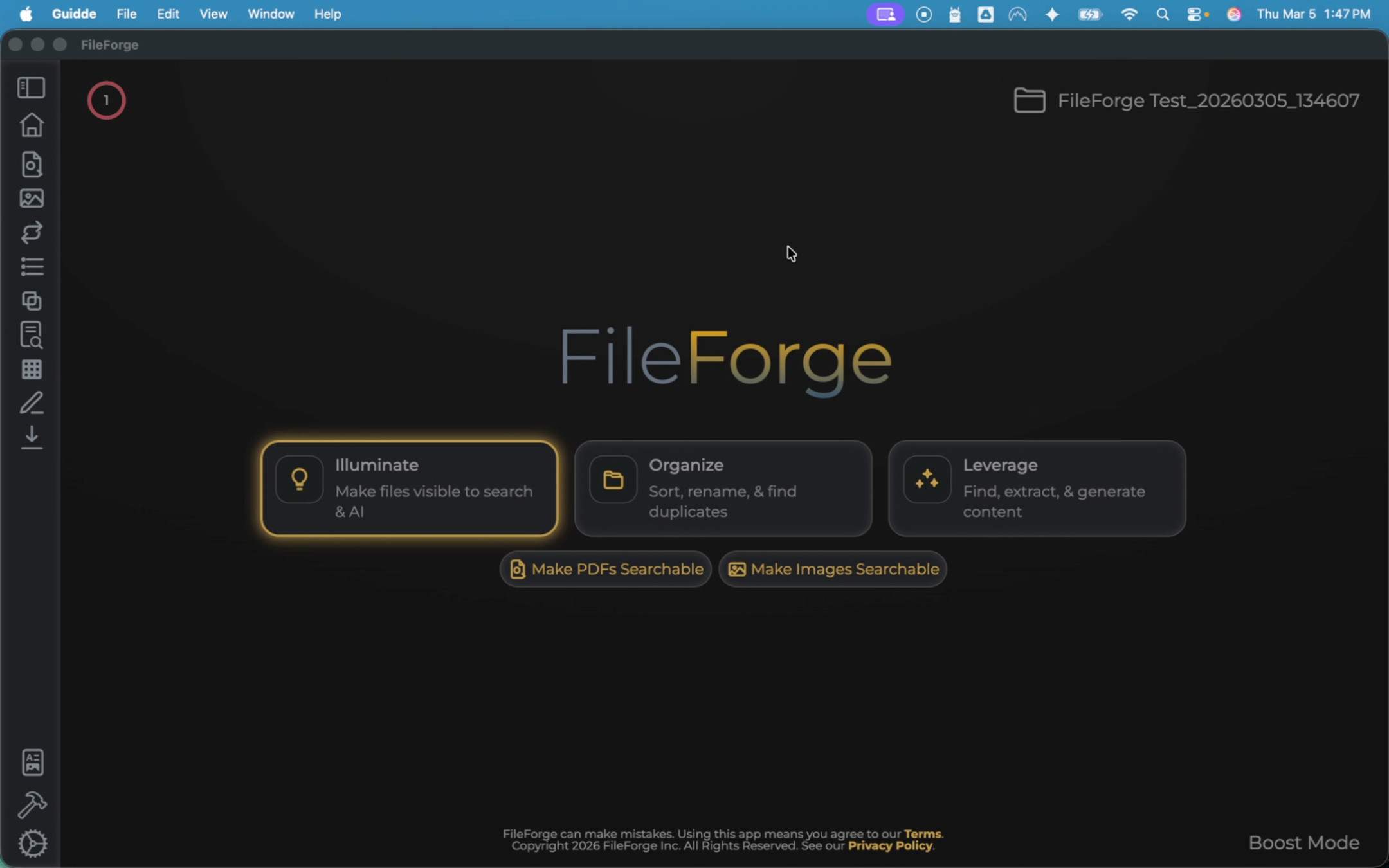
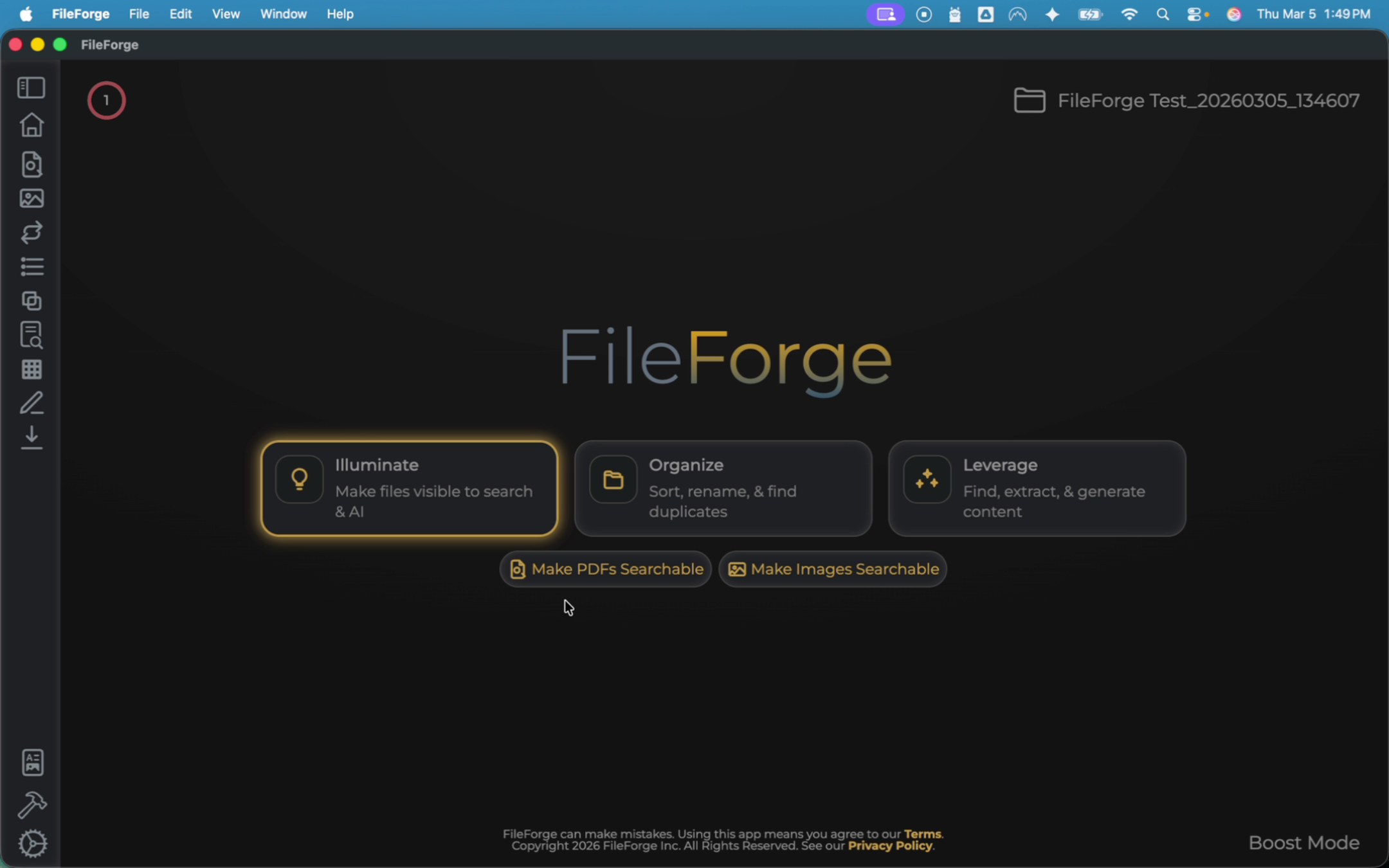
On the home screen, you will have the folder selection in the top right of your page. Select the folder, which will bring up a menu for Source Folder.
2. Edit Folder Selection
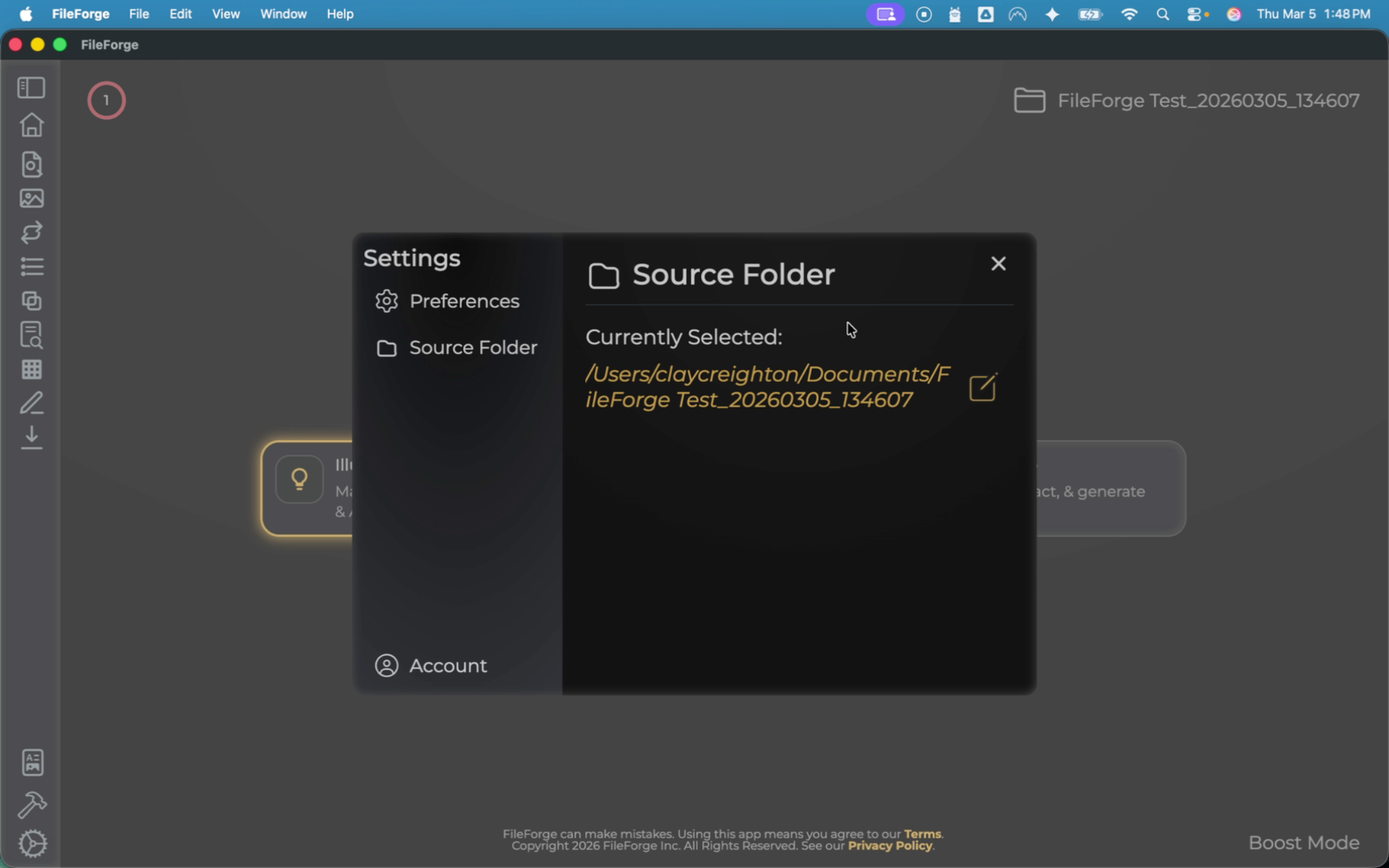
To modify the folder, select the edit icon.
3. Choose Working Folder
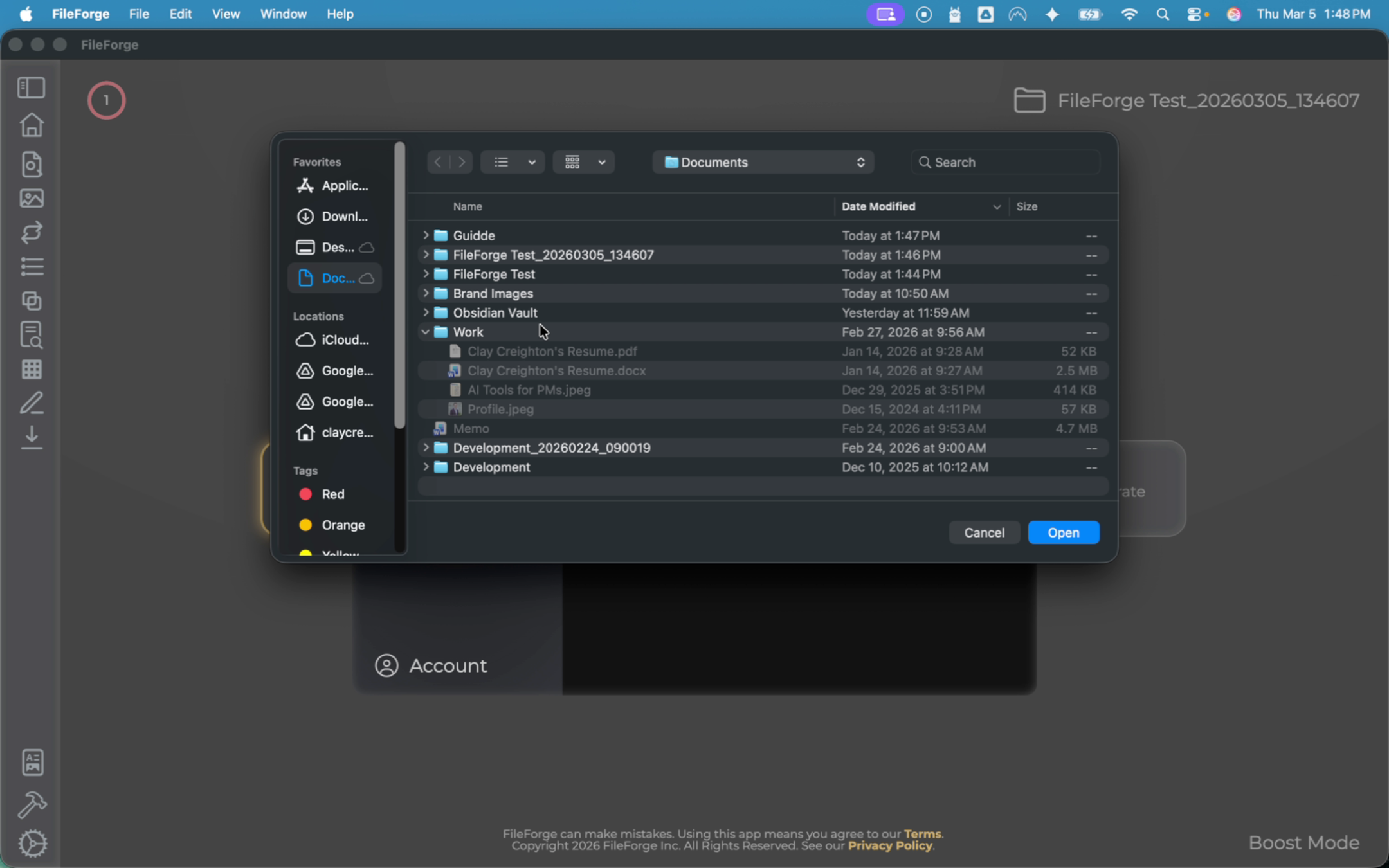
Select the specific folder that you want to work with, then select Open, and confirm changes by selecting Apply Changes.
4. Backup Work Prompt
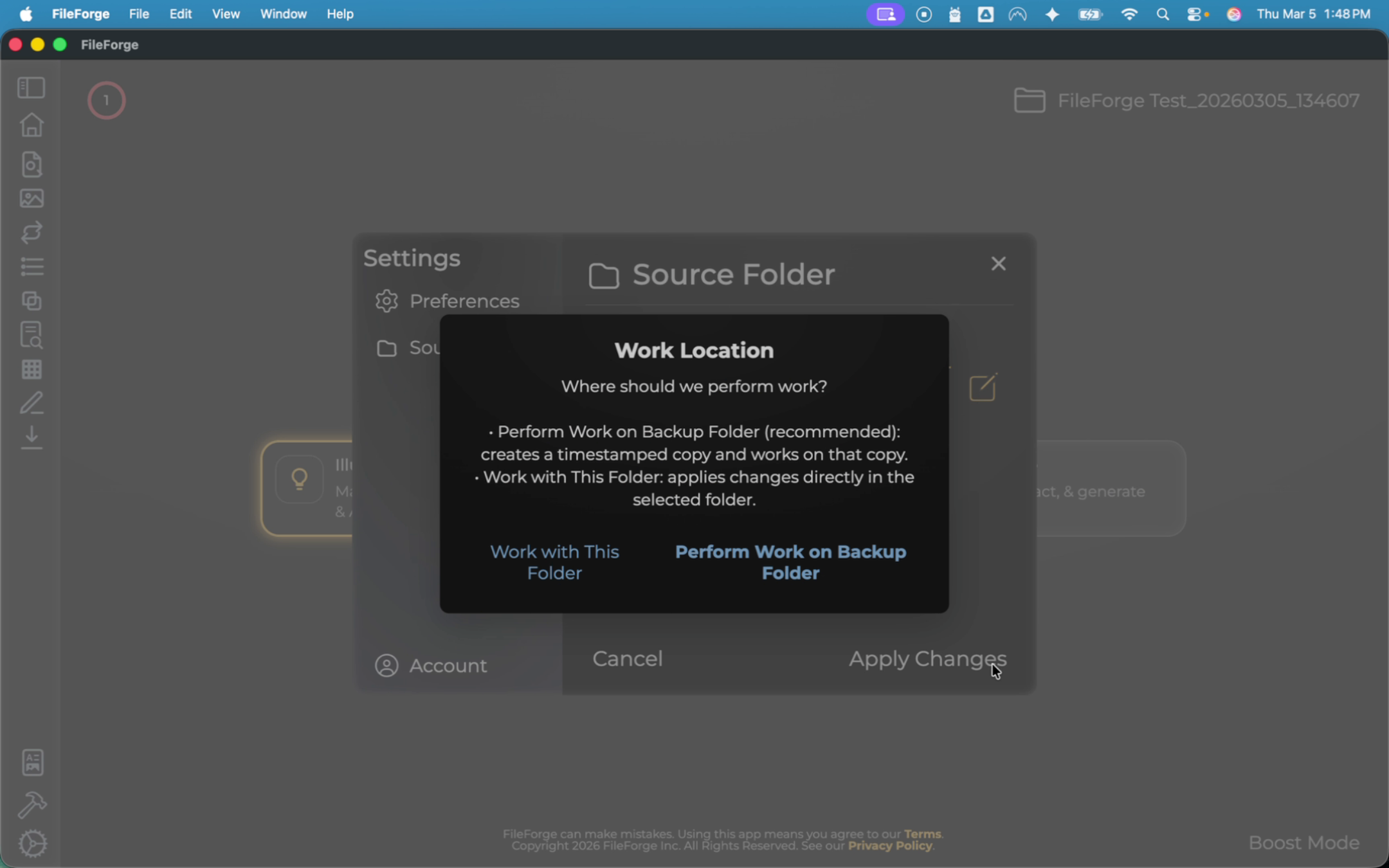
The system will ask if you want to perform work on a backup, which will copy your existing folder. We advise users to perform work on a backup to ensure that you always have an original copy.
5. Confirm Working Folder Set
You have successfully set a working folder.
Congratulations! You have successfully set a working folder. As a reminder, we recommend always using a backup folder to ensure you keep an original copy intact.