Help Center

Articles and video tutorials about the FileForge Desktop application.

Data Visibility Score

This tutorial guides you through improving your data visibility score in FileForge. You will learn how to identify issues and apply actions to enhance your data's AI readability.

1. Identify Visibility Score Icon

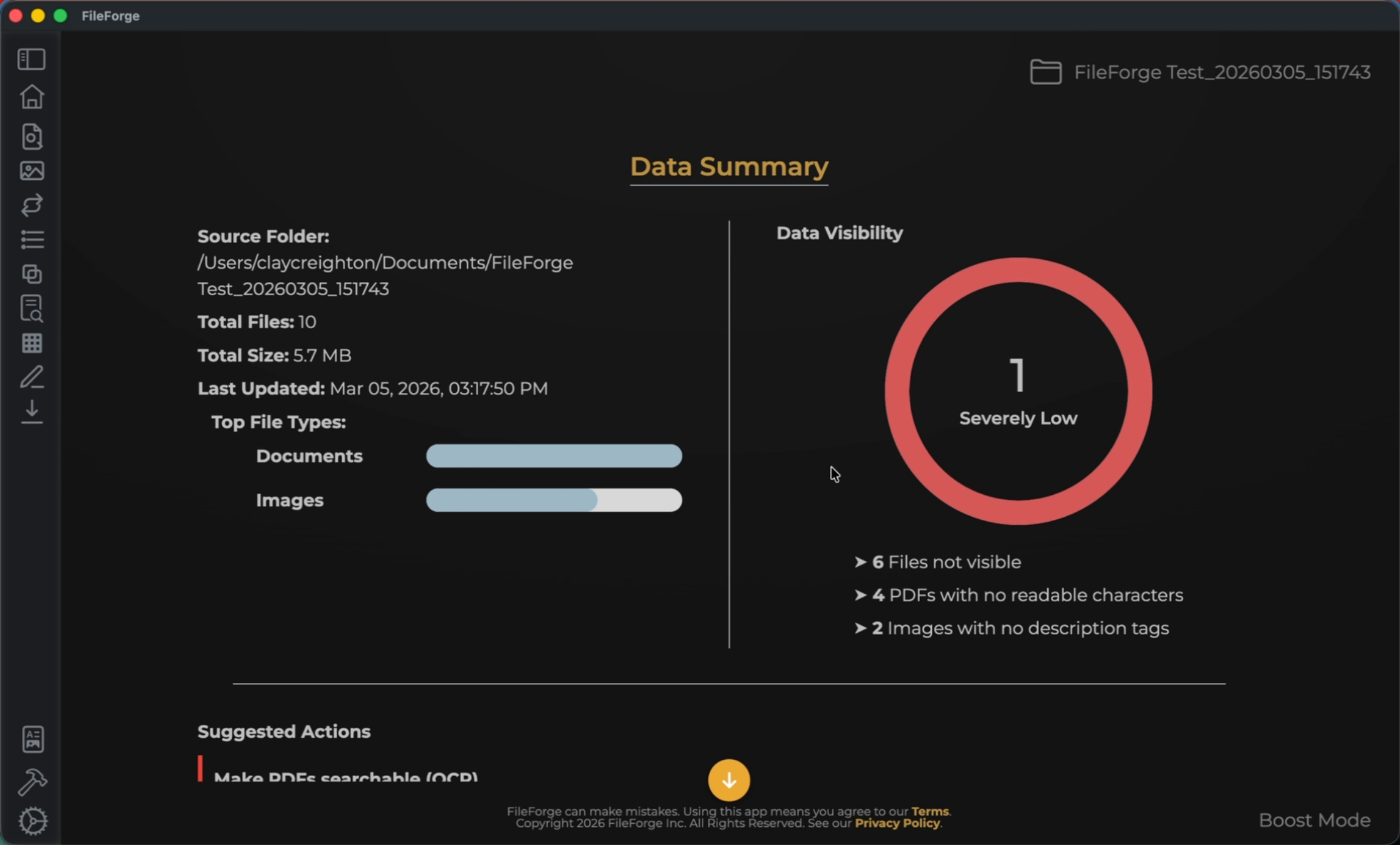
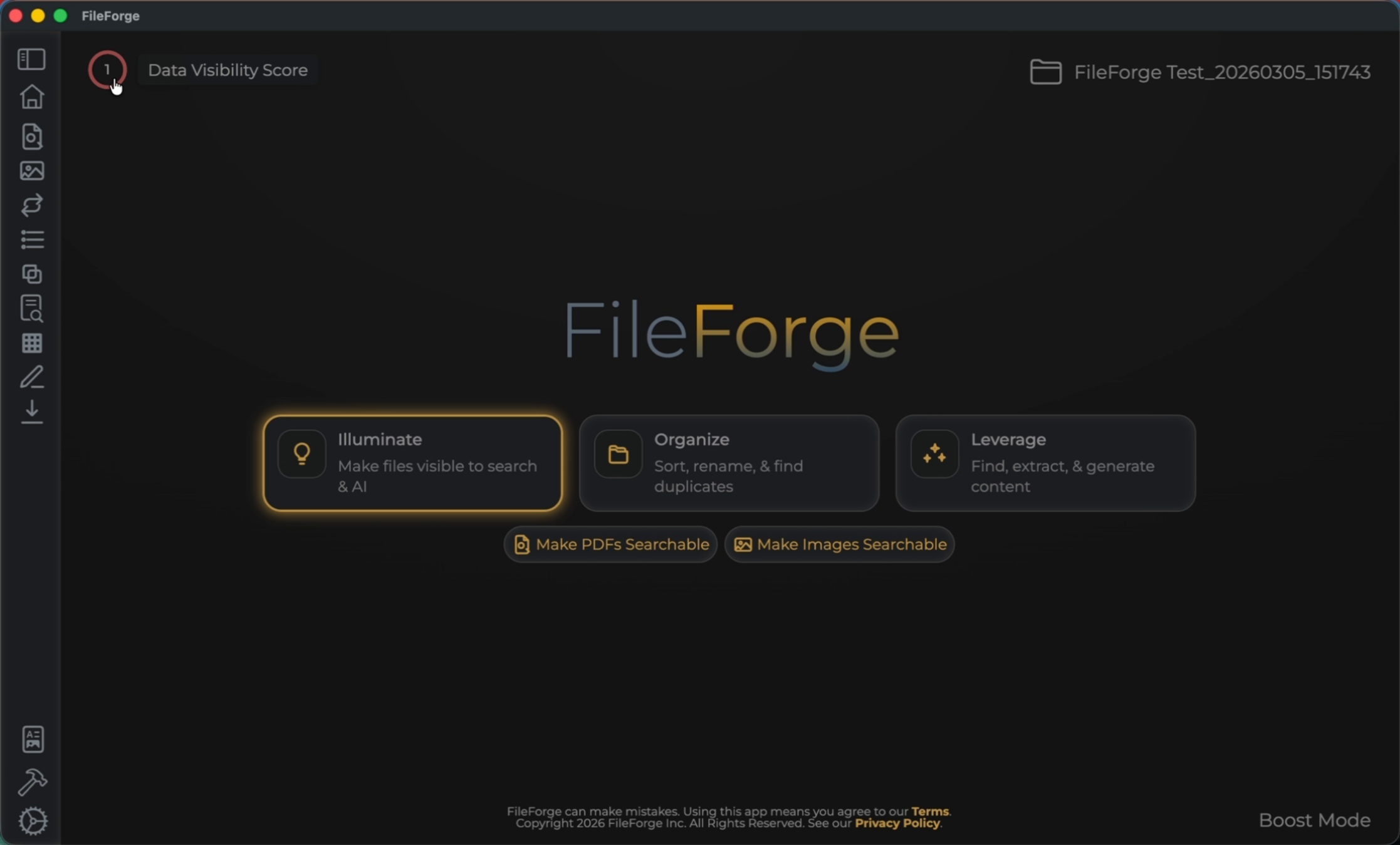
You can see an icon in the top left. The circle icon currently indicates your visibility score. As you can see, my data visibility score is currently 1 out of 100. If I click the data visibility score, I can see additional information. This information confirms the source folder that I'm working with, how many total files, and also the type of files that I'm working with. Currently my test folder that I'm connected to has six PDFs and has four JPEGs. The problem with these files is an AI system would not be able to read them because the files are not visible to an AI system. My PDFs have no readable characters and my images have no description tags. This is what gives me a severely low score.
Identify Visibility Score Icon

2. Understand AI Visibility Issues

The data visibility score page gives you a summary of how many documents are in your folder and what types of documents are in the folder. The problem with these files is an AI system would not be able to read them because the files are not visible to an AI system. My PDFs have no readable characters and my images have no description tags. This is what gives me a severely low score.

Understand AI Visibility Issues

3. Apply Suggested Actions to Improve Score

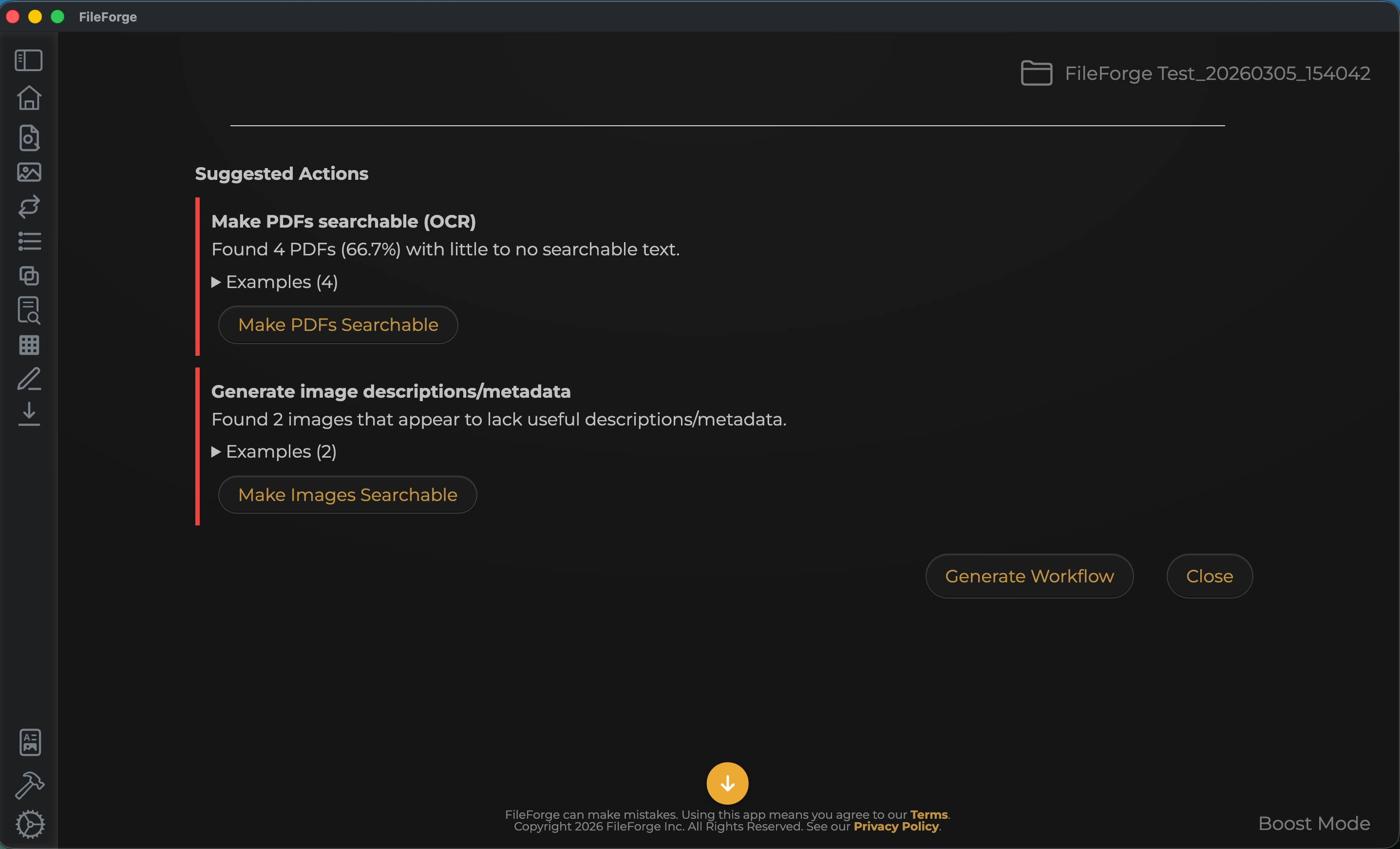
The great thing about the data visibility score is it also provides suggested actions to increase our visibility score. The first suggestion is to make your PDF searchable. Let's go ahead and do this action. I'll click make PDF searchable, then confirm that I want to proceed with this action.

Apply Suggested Actions to Improve Score

4. Review Updated Visibility Score

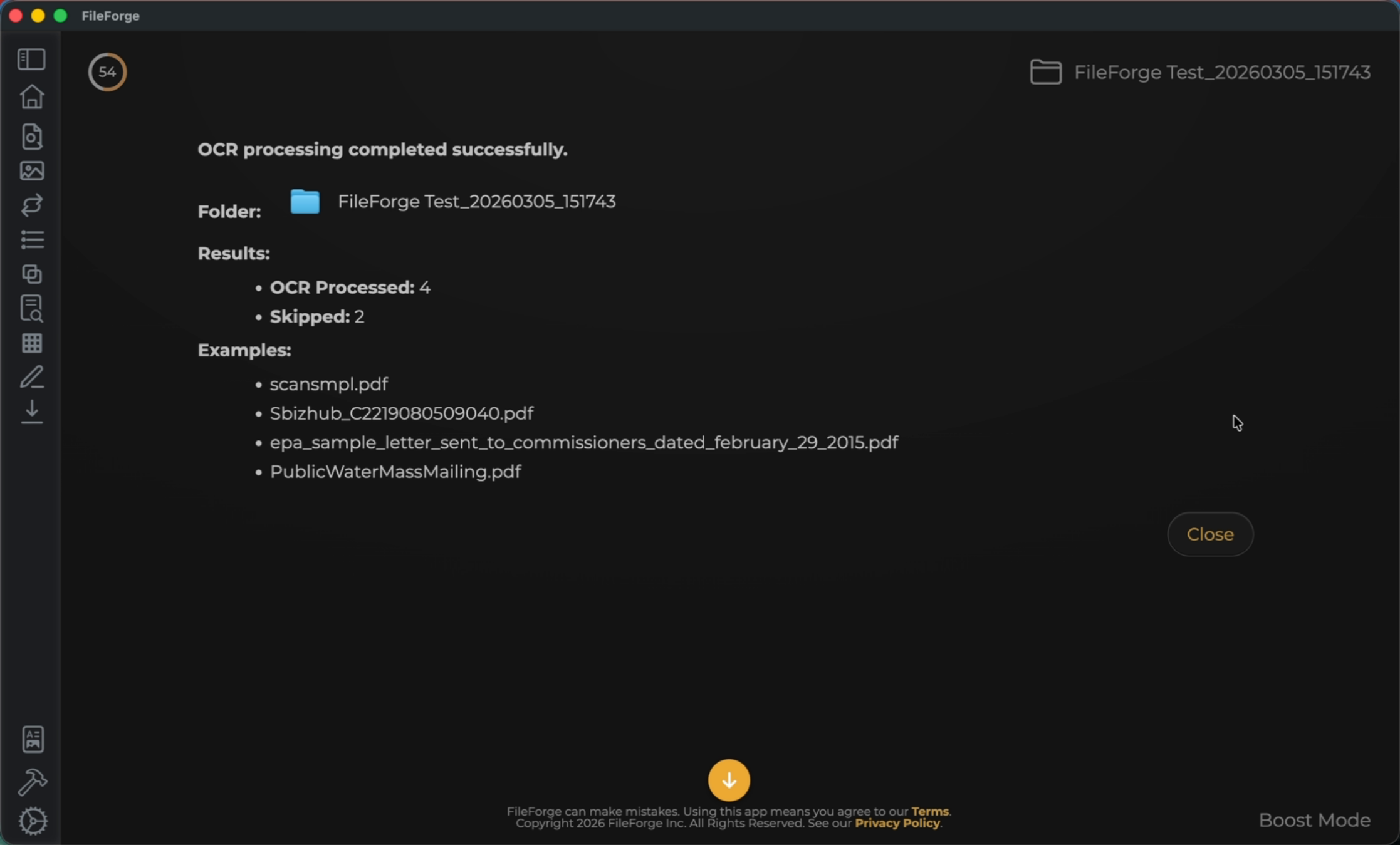
Okay, now that our PDFs have been OCR'd, I can go ahead and close that out. And I can also see that our data visibility score has increased from 1 to 54. I can now go back into my Data Visibility Score to see what other actions I can take.
Review Updated Visibility Score

5. Make Images Searchable

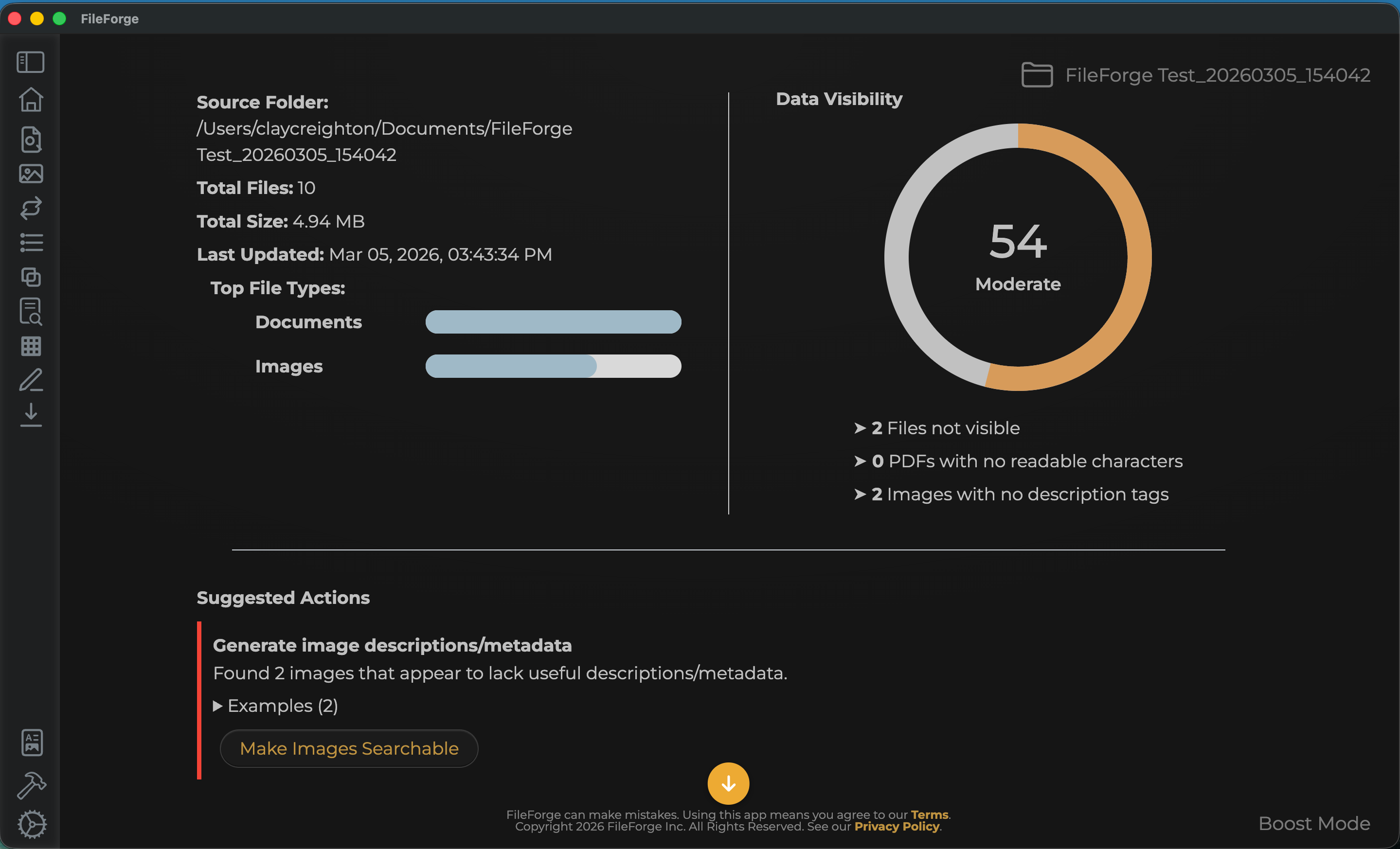
The next thing that we can do is make our images searchable. So I'll proceed with that. At this step, I can go ahead and add custom instructions, but I'm going to simply let the system describe what the images are. So I will proceed.
Make Images Searchable

6. Complete Image Tagging

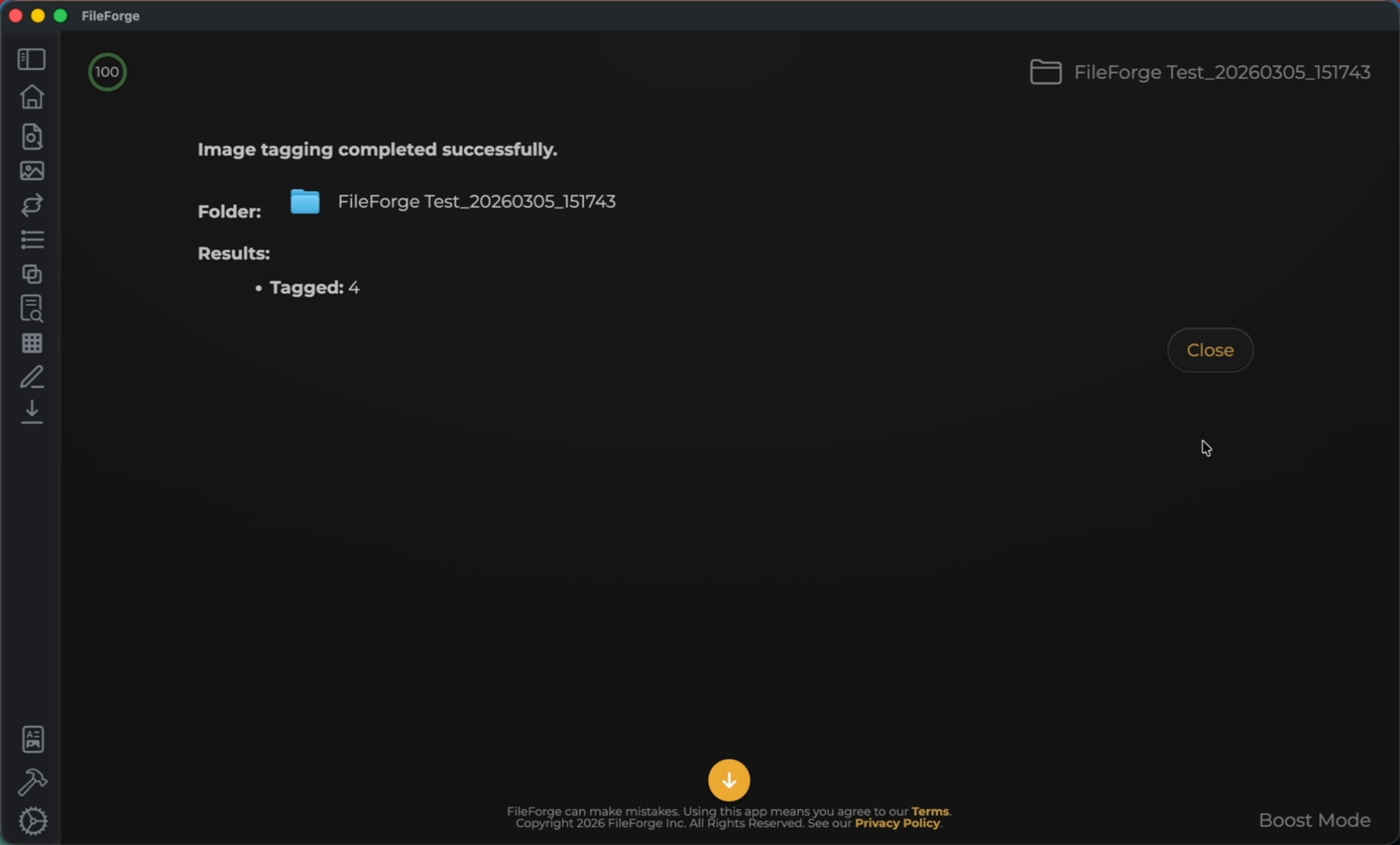
Now that it has successfully tagged all of my images, I can close this out and go back into my Data Visibility Score.
Complete Image Tagging

7. Check Final Visibility Score

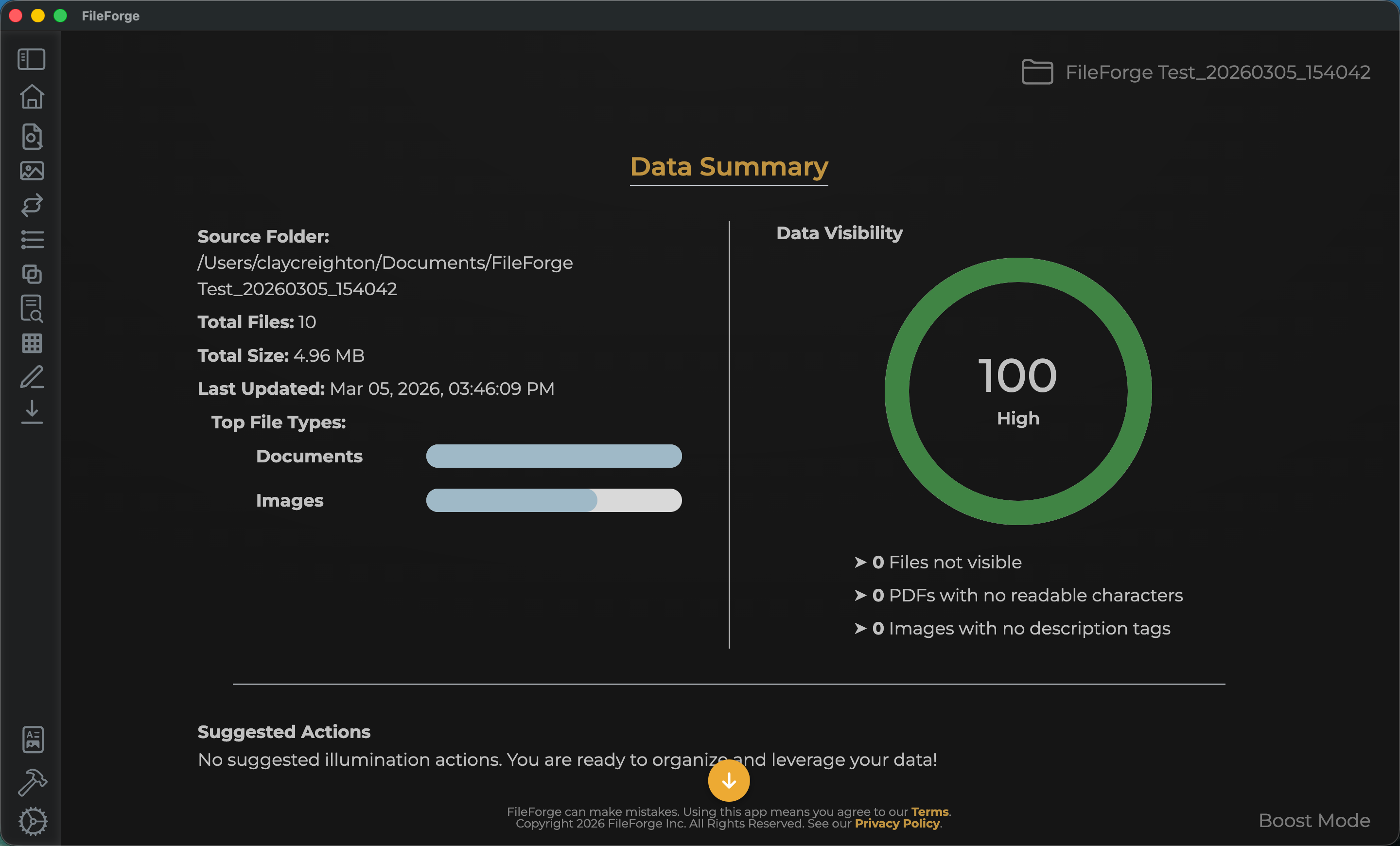
And I can now see that my data visibility score is 100, which is exactly where we want to be.
Check Final Visibility Score
Congratulations! You have successfully improved your data visibility score by making PDFs searchable and tagging images.
Powered by guidde