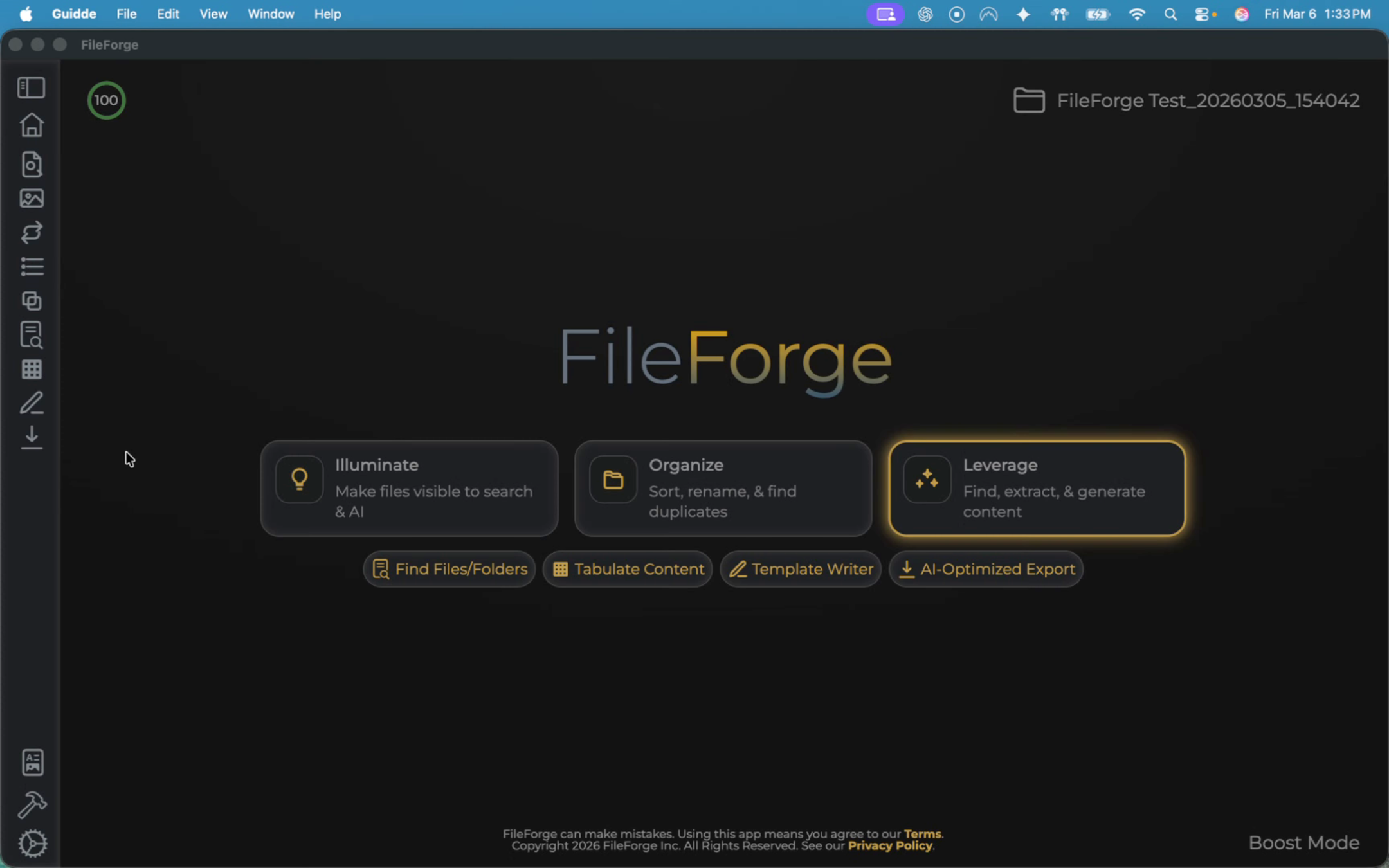
To start this process, ensure that you're on the Leverage tab. From there, select AI Optimize Export.
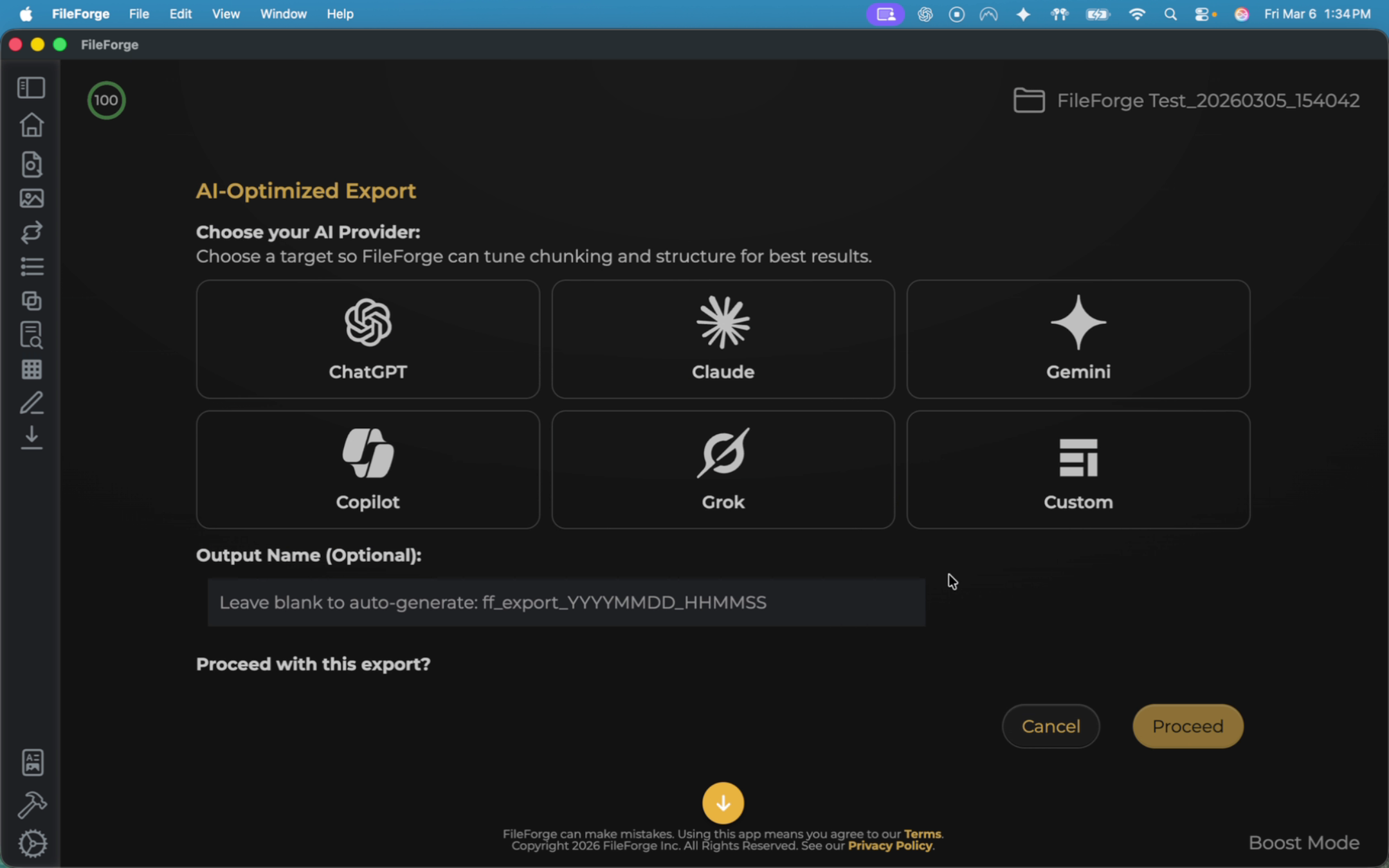
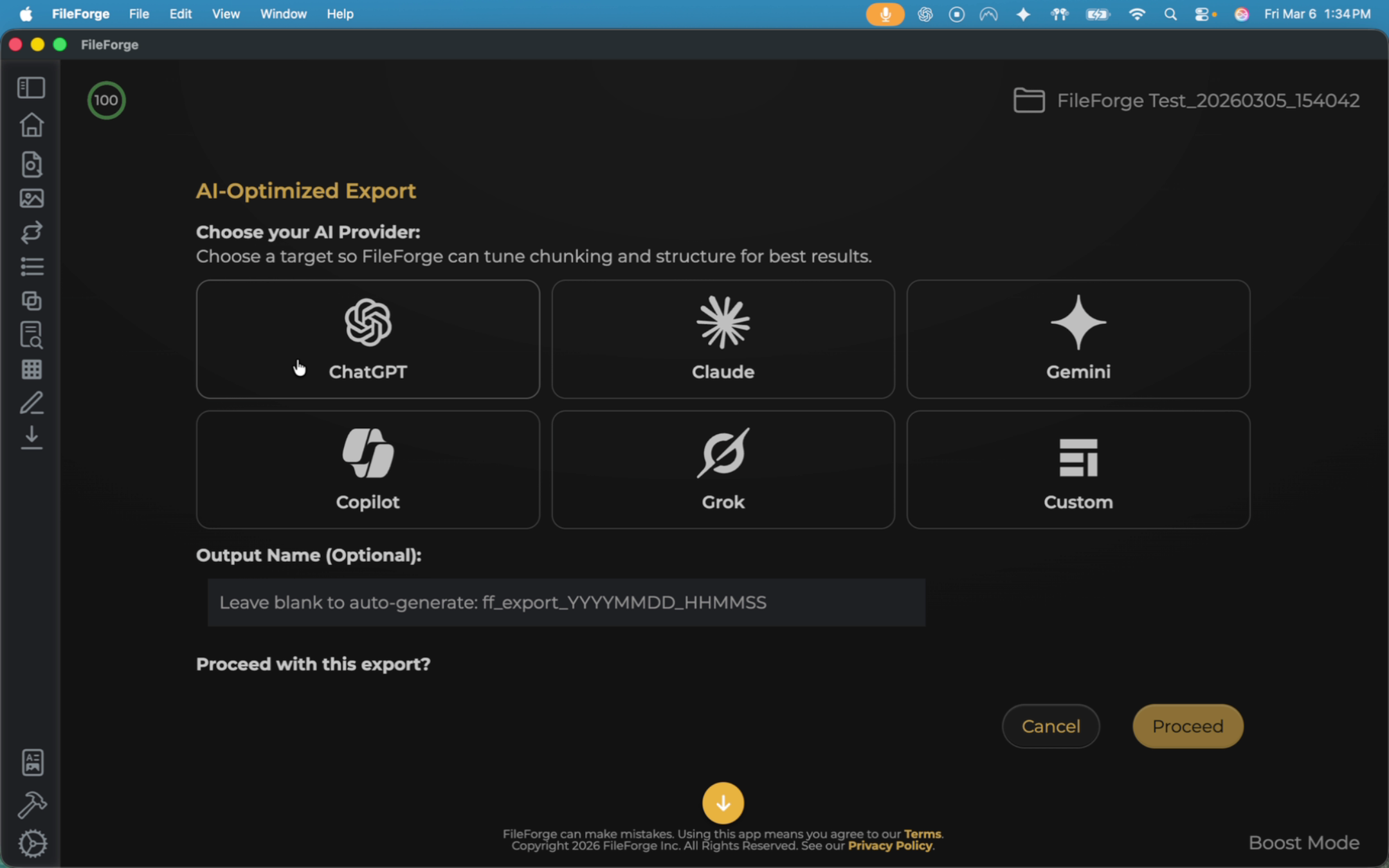
For this example today, you will learn how to export a file from FileForge to ChatGPT so that ChatGPT can easily access and provide context-rich responses based on your files. Start by selecting ChatGPT. Then for this example, we will export a file to create a custom GPT within ChatGPT. Then select Proceed.
A markdown file is created. Select the markdown file to download.
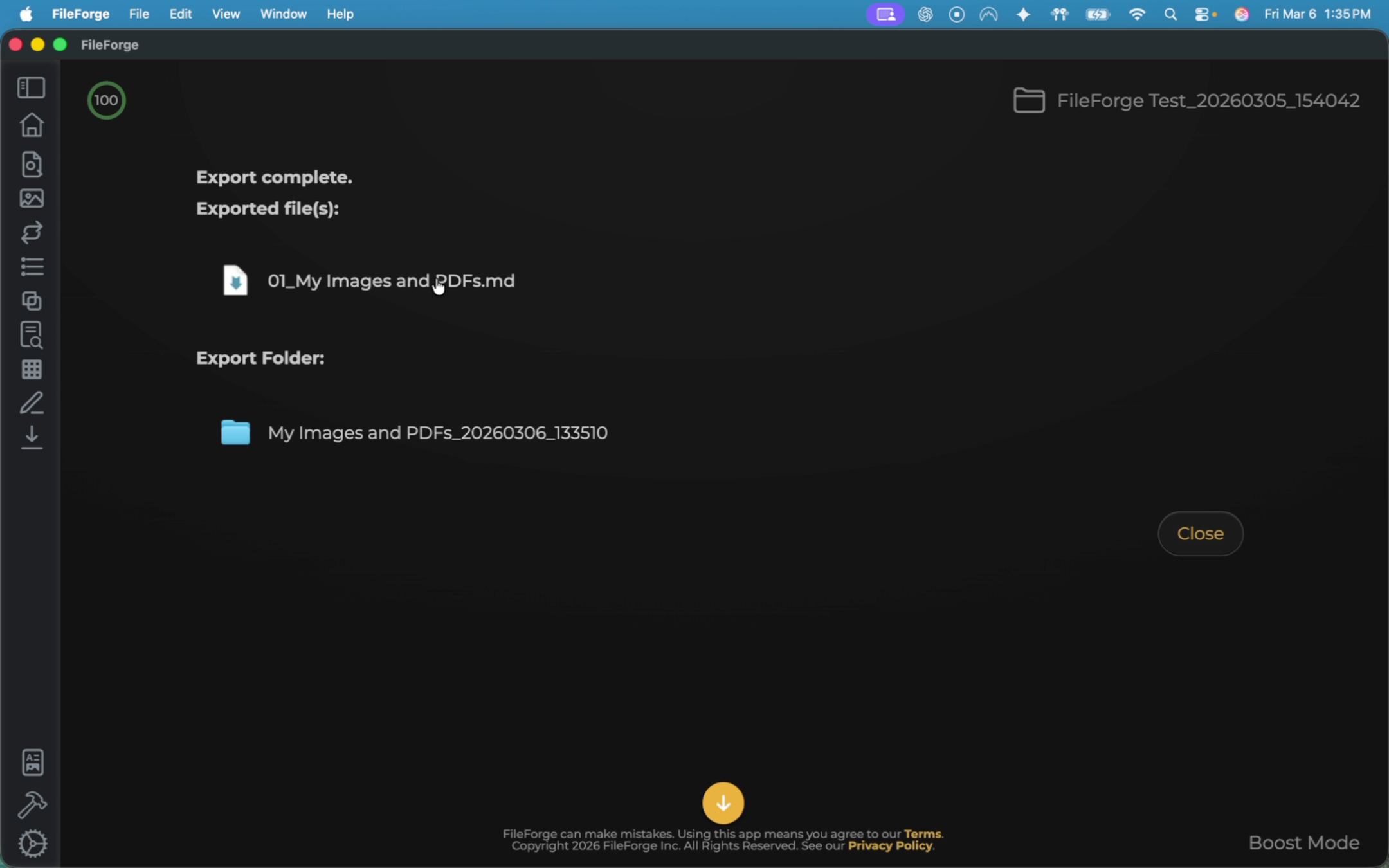
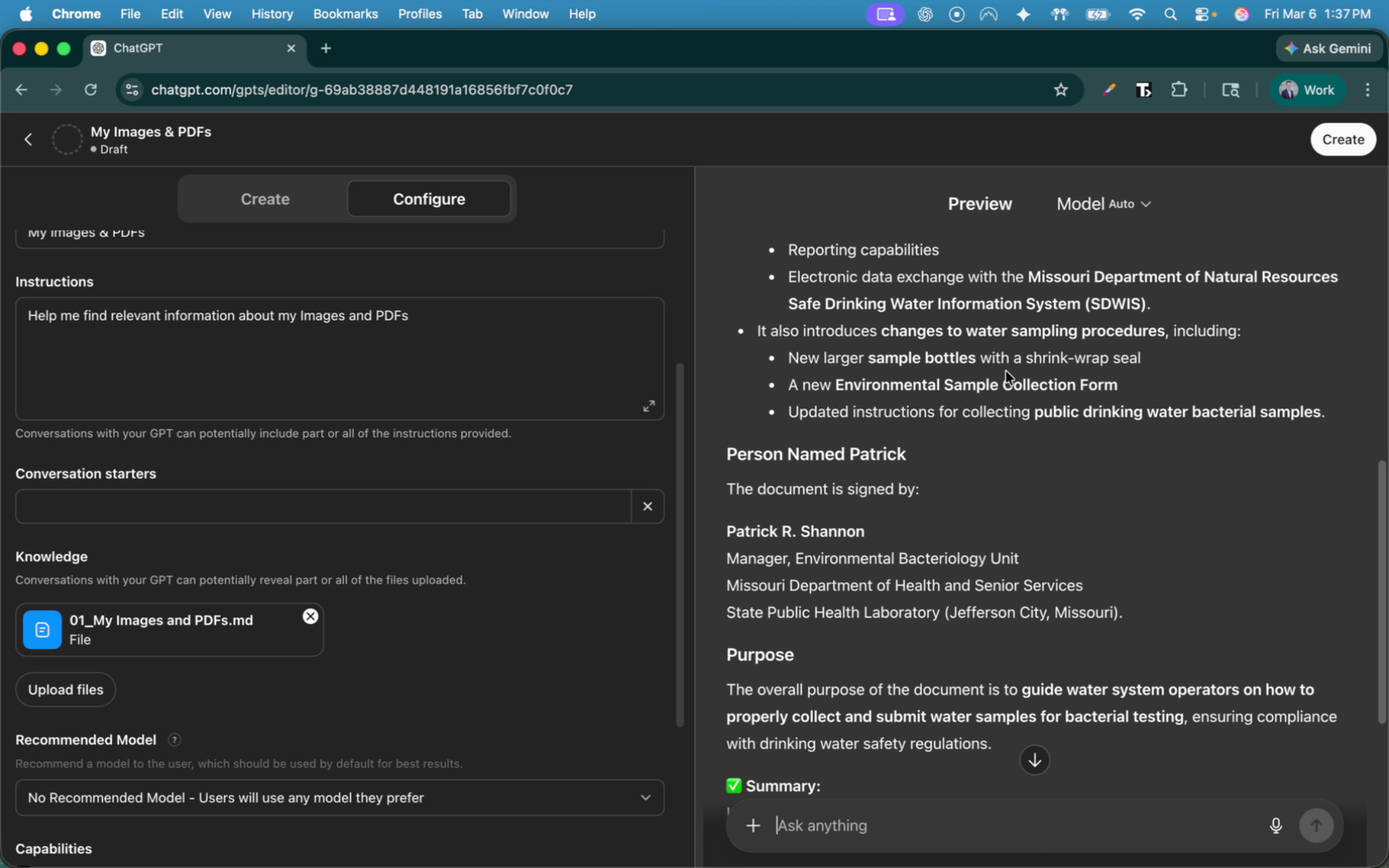
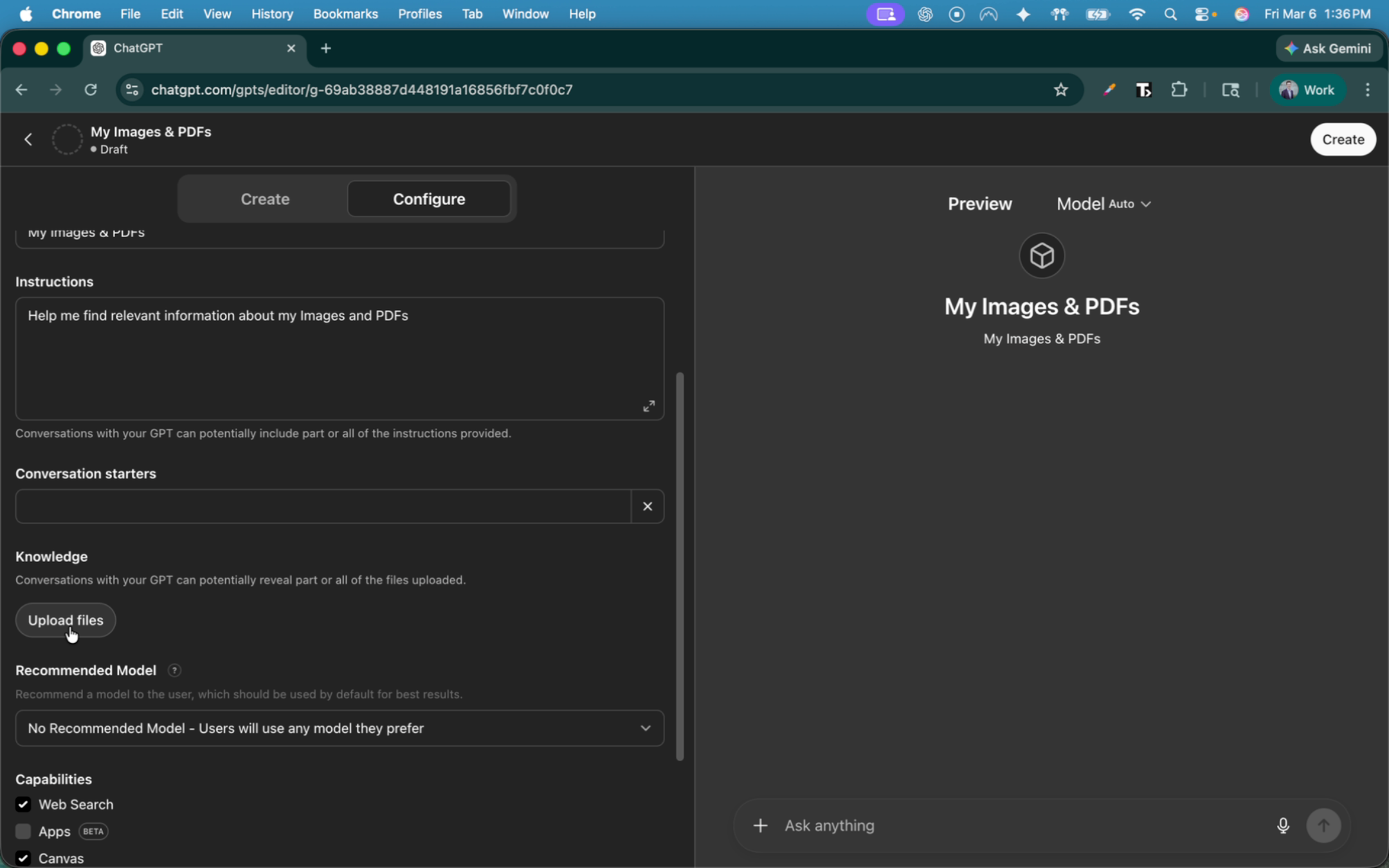
In this example, you are creating a Custom GPT. ChatGPT has the ability to upload the markdown file created from FileForge.
Test this out and see if ChatGPT is able to find relevant content. In this example, I know there is a document regarding water and is signed by Patrick. So let's go ahead and see if ChatGPT can find that information.
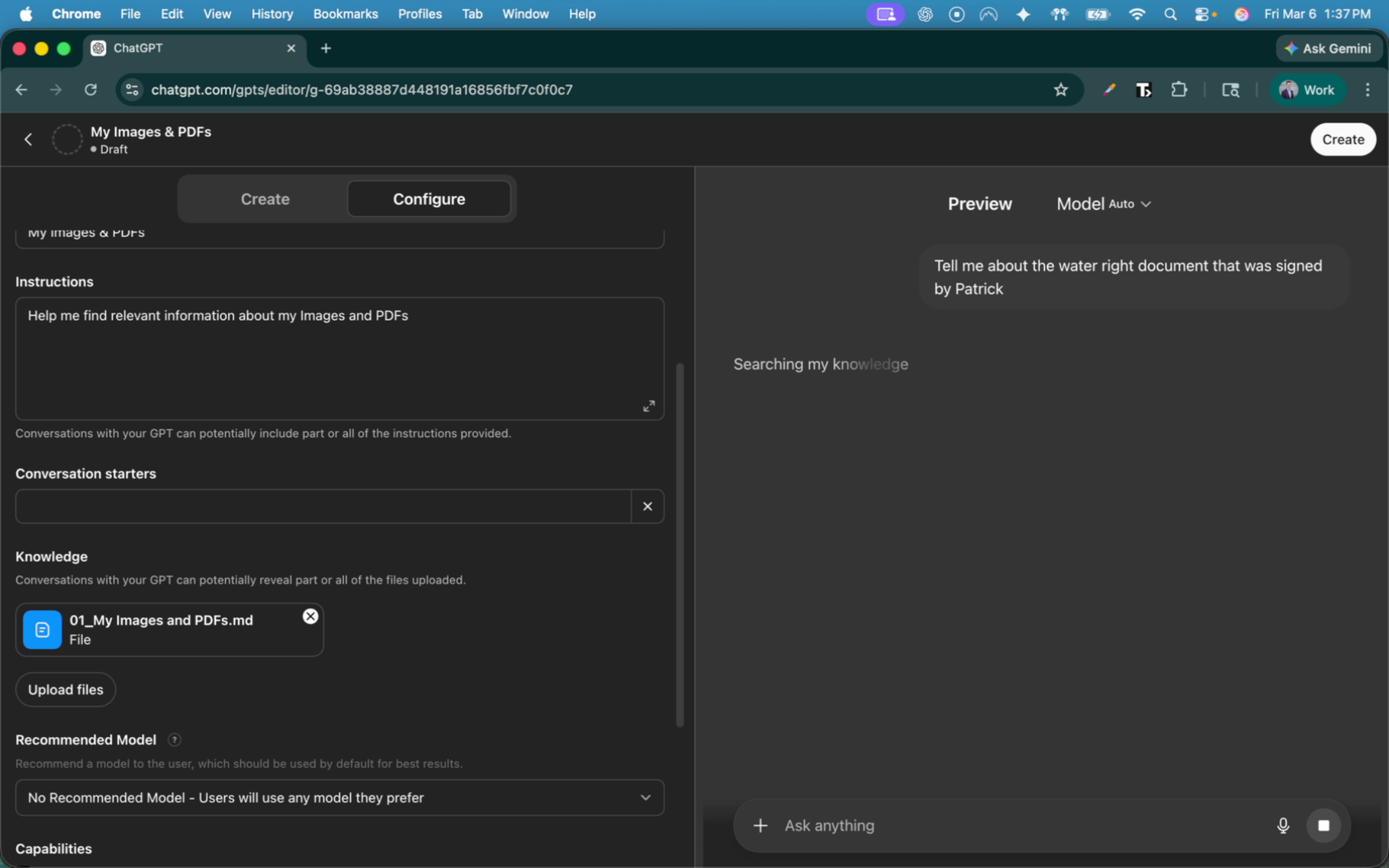
ChatGPT was able to find the relevant information because FileForge was able to transform that document into an AI-readable document.