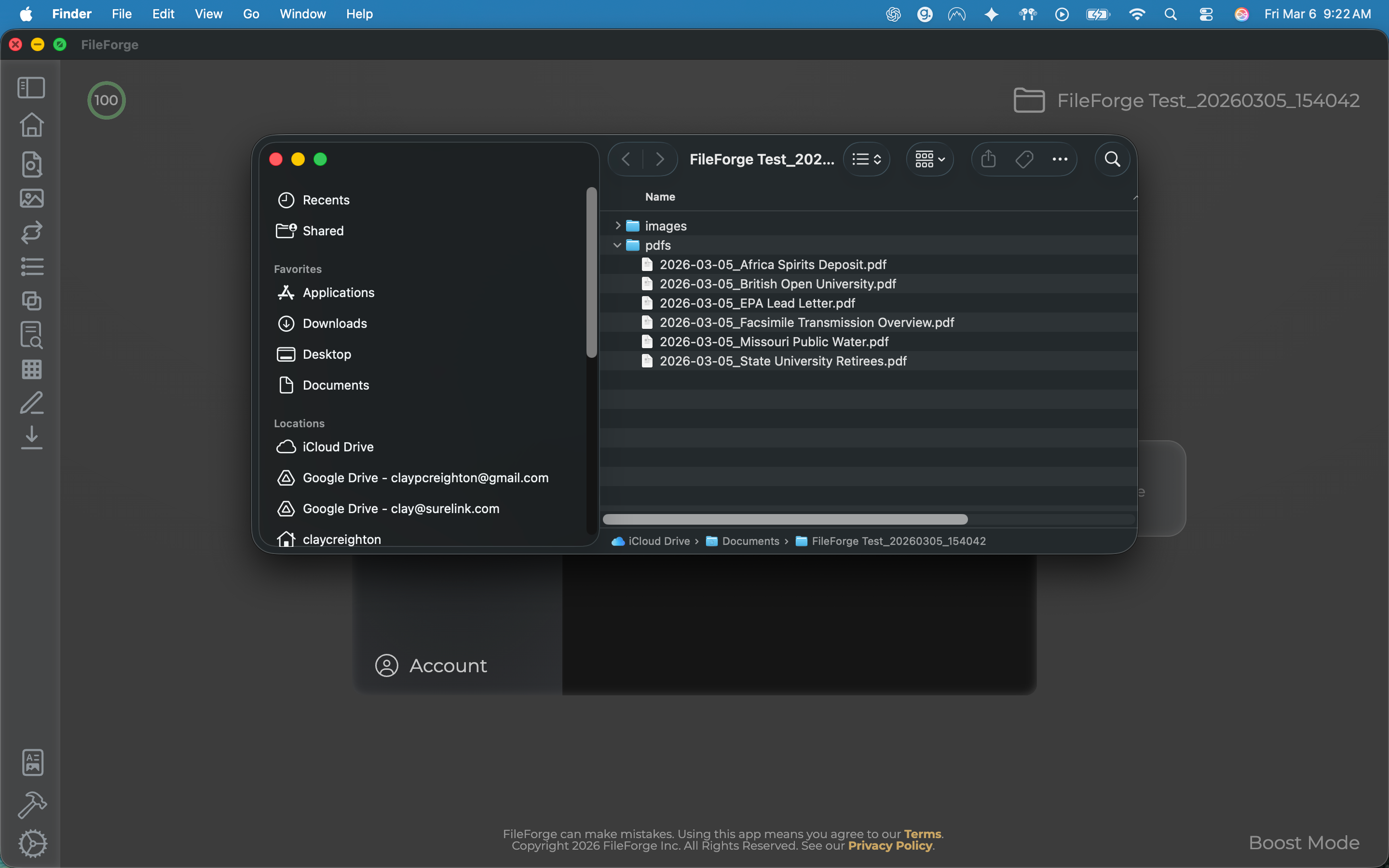
To start, make sure you're on the organize tab. From there, select the move or copy files function. This function allows you to provide specific instructions for how you want your files to be moved or copied. In this example, we'll start with a simple use case where you can organize your files by file type. e.g. "Please organize my files into folders based on images and PDFs."
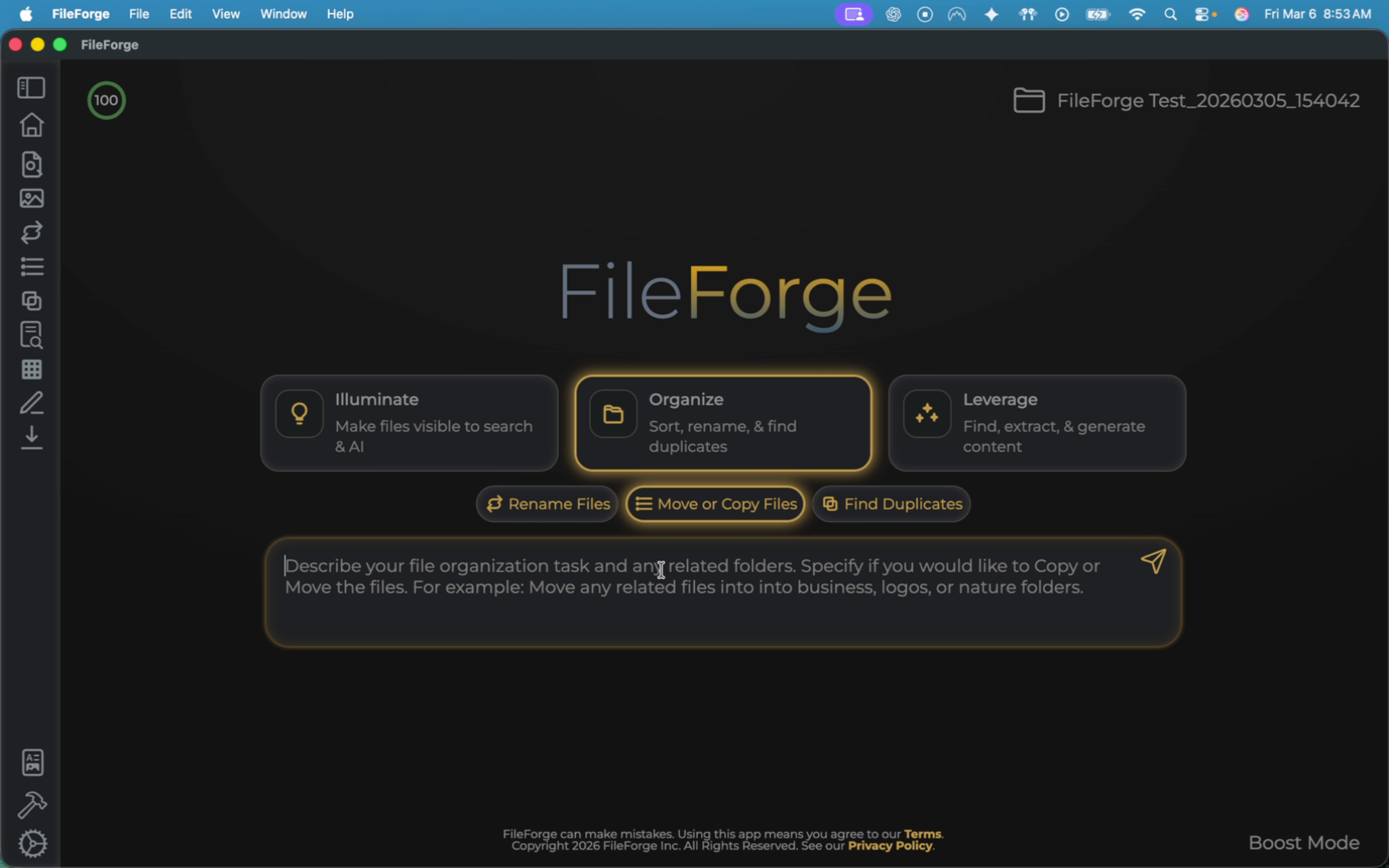
Before we run this prompt, let's take a look at the example data that we have within this folder. Click on the folder in the top right and then open up that folder. You can see that this specific folder has roughly 10 different files within it and it contains various different JPEG files as well as different PDF files. After we run this, the expectation is that these will be grouped into specific folders based on images and PDFs. Close out this window and return back to our prompt to run this.
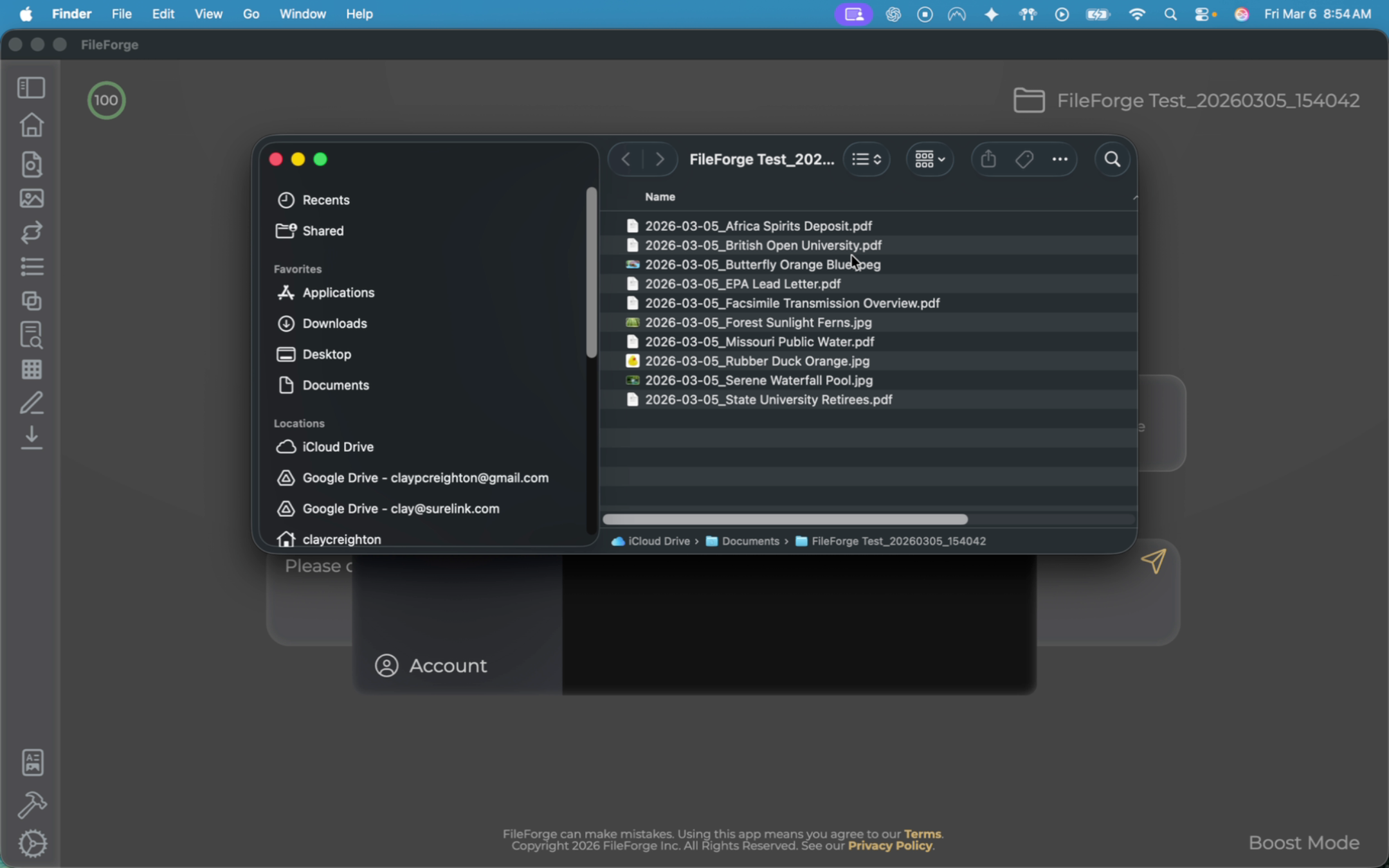
Similar to any other FileForge function, the sytem will provide a preview of what it's going to do. Once you confirm the plan, press proceed to move forward.
Once complete, it will provide you with the summary. Here it says it ended up moving 10 files and creating two subfolders within the existing working folder. Six of those files were PDFs moved into a PDF folder, and four of those image files were moved into an image folder.
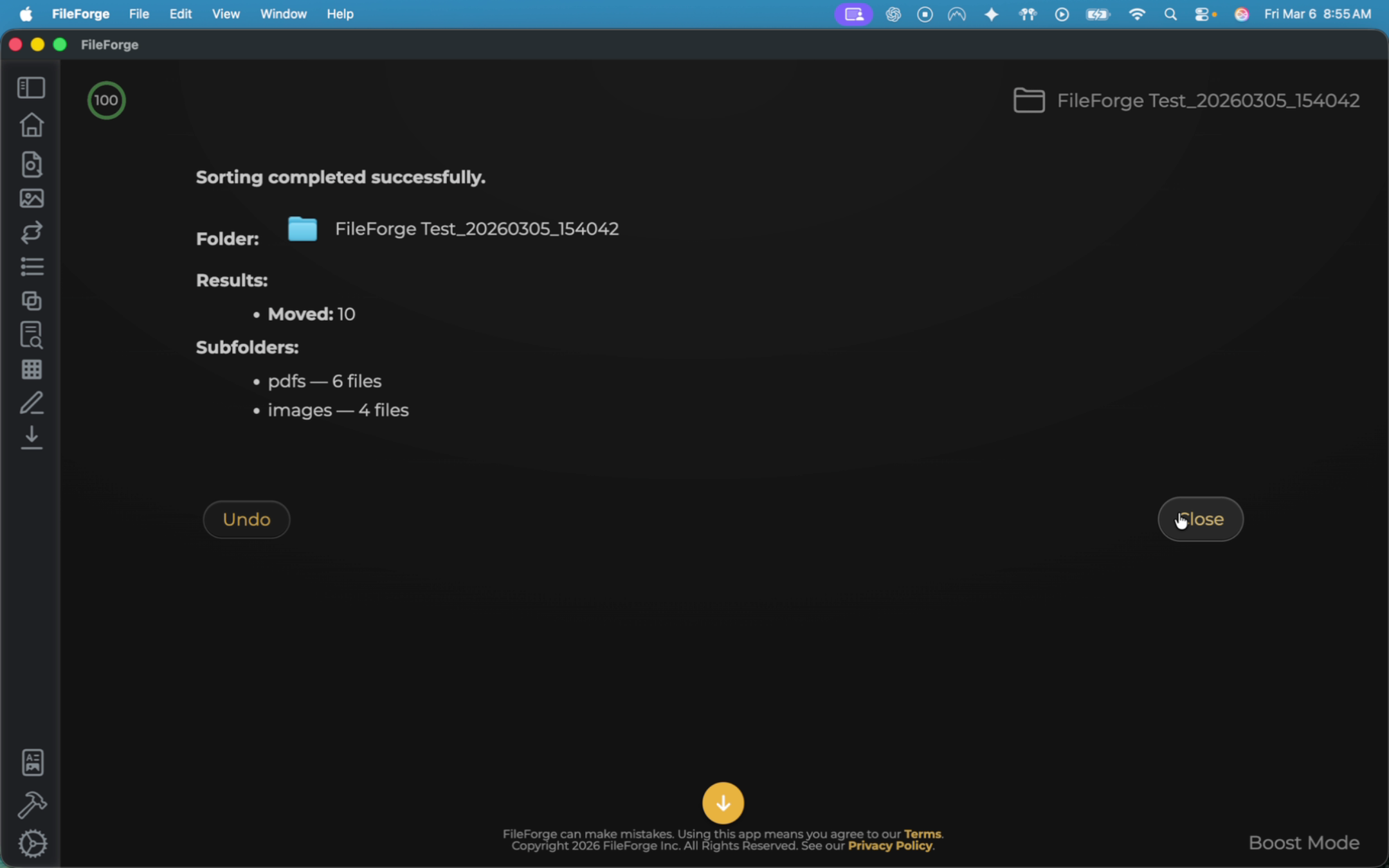
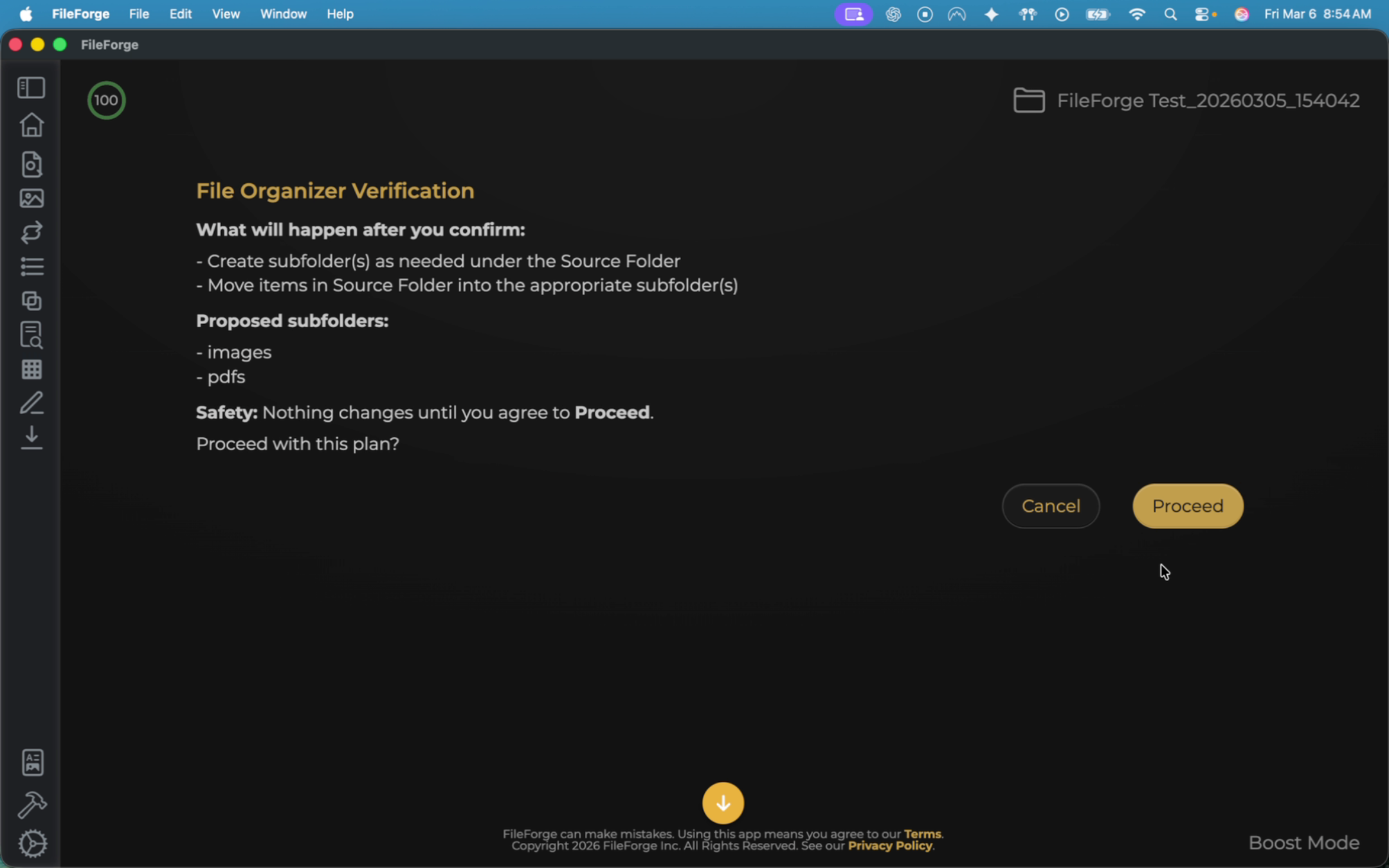
You can see that you have two folders that match the prompt's instructions.
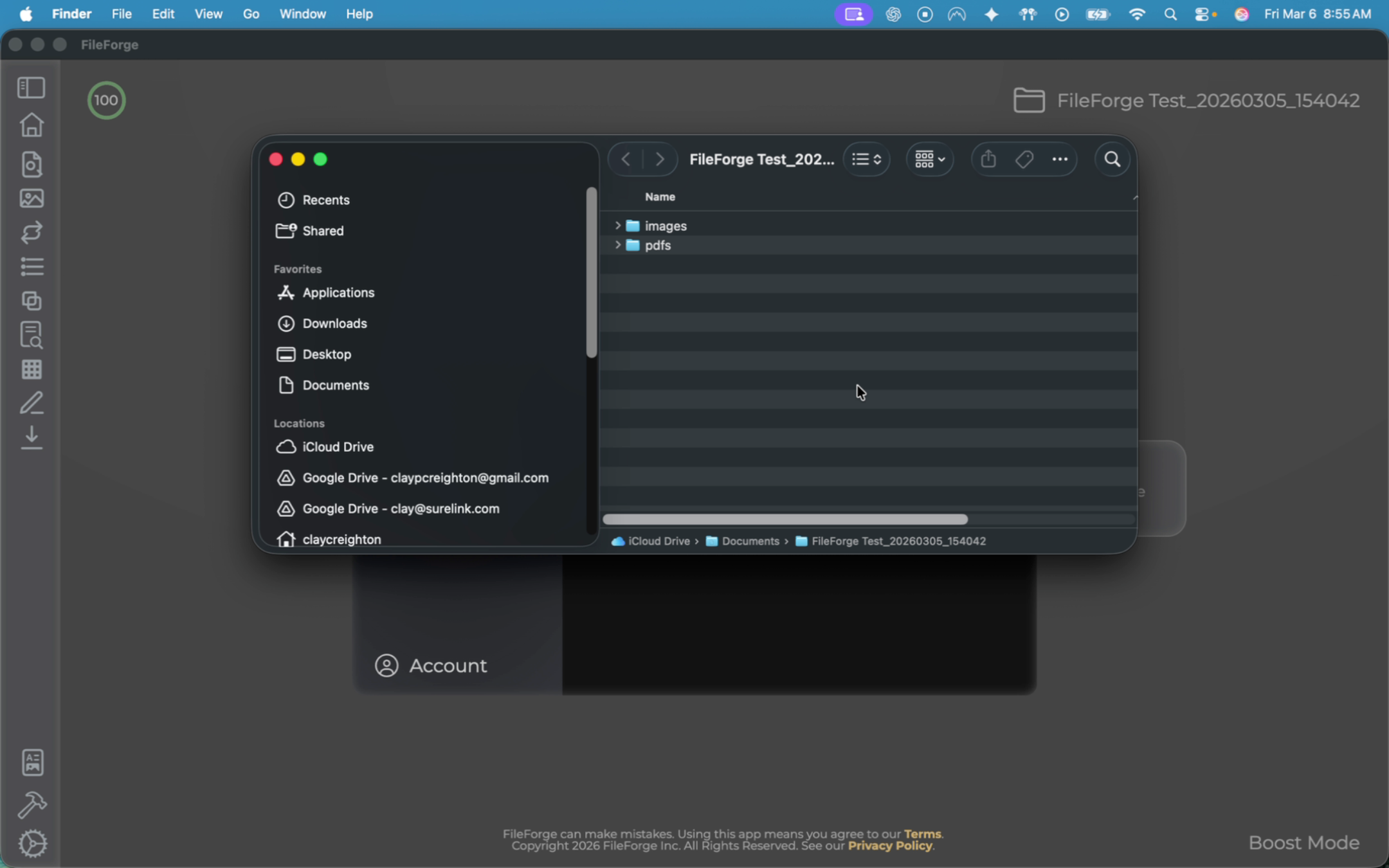
If you open up your images folder, you can confirm that it now contains all of your JPEGs.
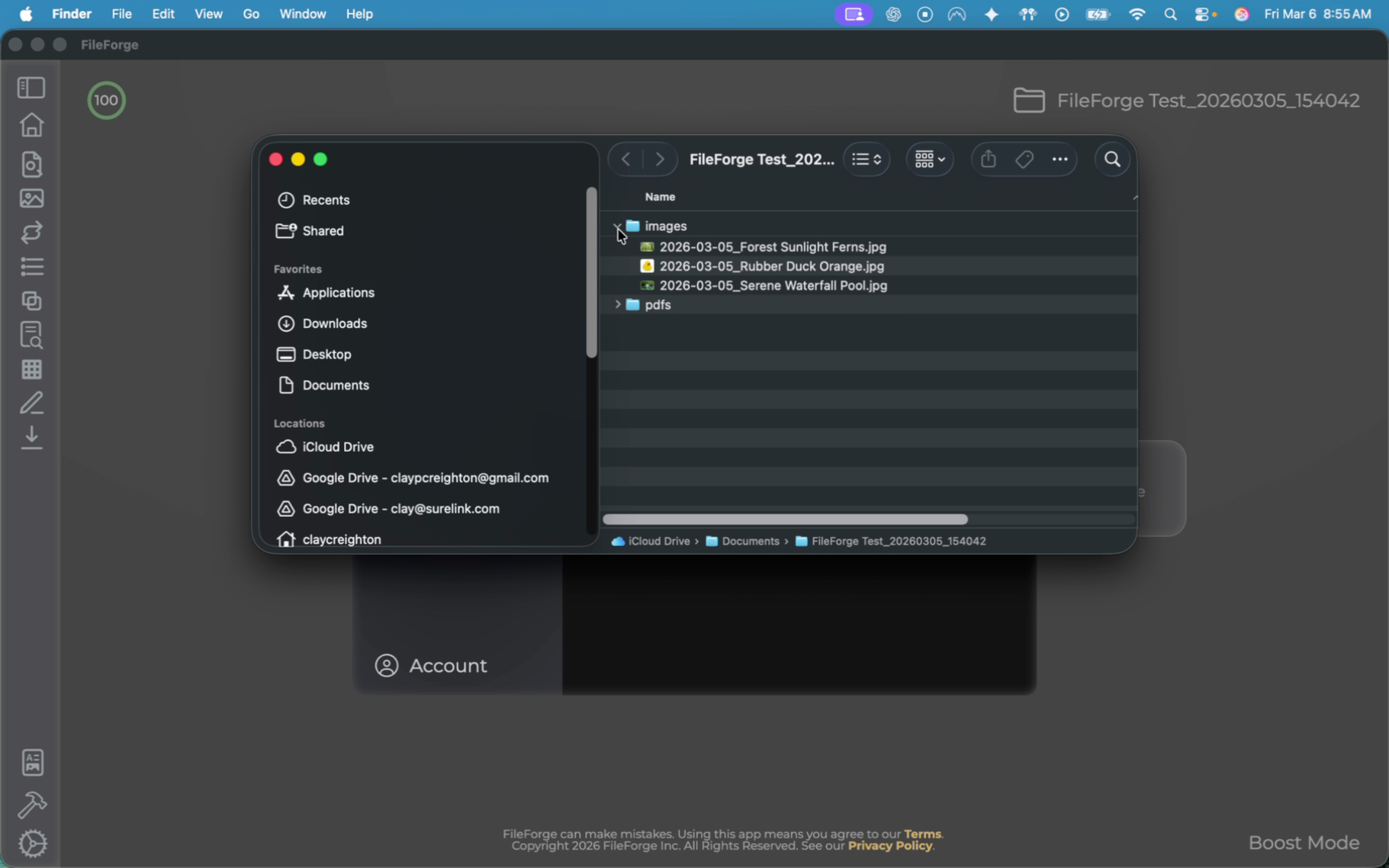
And if you open up your PDFs folder, you can confirm that it now contains all of your PDFs.